There may be more than one reason why you want to use a Windows keyboard with a Mac OS X computer: a powerful/expensive keyboard that you already possess, lack of availability of Apple keyboards, or you cannot justify spending the money to buy an Apple keyboard when there’s a Windows keyboard lying around.
Whatever the reason, DoubleCommand is a free Mac OS X preference pane which you would want to get. It enables you to reassign some of the keys on your keyboard. You can remap various keys – see their feature page for the full list.
Configure Windows keyboard with DoubleCommand
- Download DoubleCommand and install it. Installation is done with the usual procedure: mount it by double-clicking the .dmg file you downloaded, then copy the application from the mounted image (found in the left pane of Finder) to the Applications folder.
- Once installed, it will be available under the ‘Other’ section of System Preferences pane.
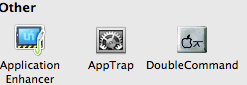
- Clicking on it will bring up the preference pane for DoubeCommand.
- Click the checkboxes to configure keys as you want them. Remember to hit the System button to the right of Save so that your settings will be remembered.
- You can see the settings I used in the image below.
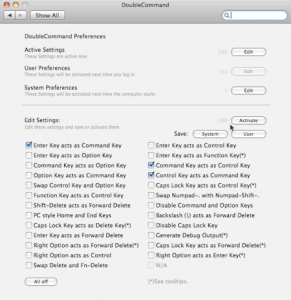 I started using DoubleCommand to switch only two keys – the Command and Control keys on my Windows keyboard connected to a Macbook. You may want to configure / reassign other keys too – lots of keys and swapping are provided as options in DoubleCommand.